ToothPaste Guide
ToothPaste is the fastest way to import your SVGs into After Effects.
Installation
The easiest way to install and license is by using the aescripts + aeplugins manager. To install a trial you can select 'Add Trial' from the 'Account' menu.
For manual installation follow these steps:
- Download the ZXP/UXP Installer
- Drag the ZXP file into the installer
Using ToothPaste
ToothPaste is a simple extension with a minimalist UI. The easiest way to use it is by copying an SVG from another app (e.g. Affinity Designer, Figma, etc.) and clicking on the 'Paste SVG' button.
Paste SVG
This button pastes the SVG on the active composition.
Precomp groups
This option lets you precomp all the groups for better organisation and structure. If you prefer to have all your shapes added in the active comp, leave it unchecked.
Center in comp
This option allows you to center your SVG in the middle of the composition. By default, ToothPaste will paste from the top left corner of the active comp.
Exporting from Figma
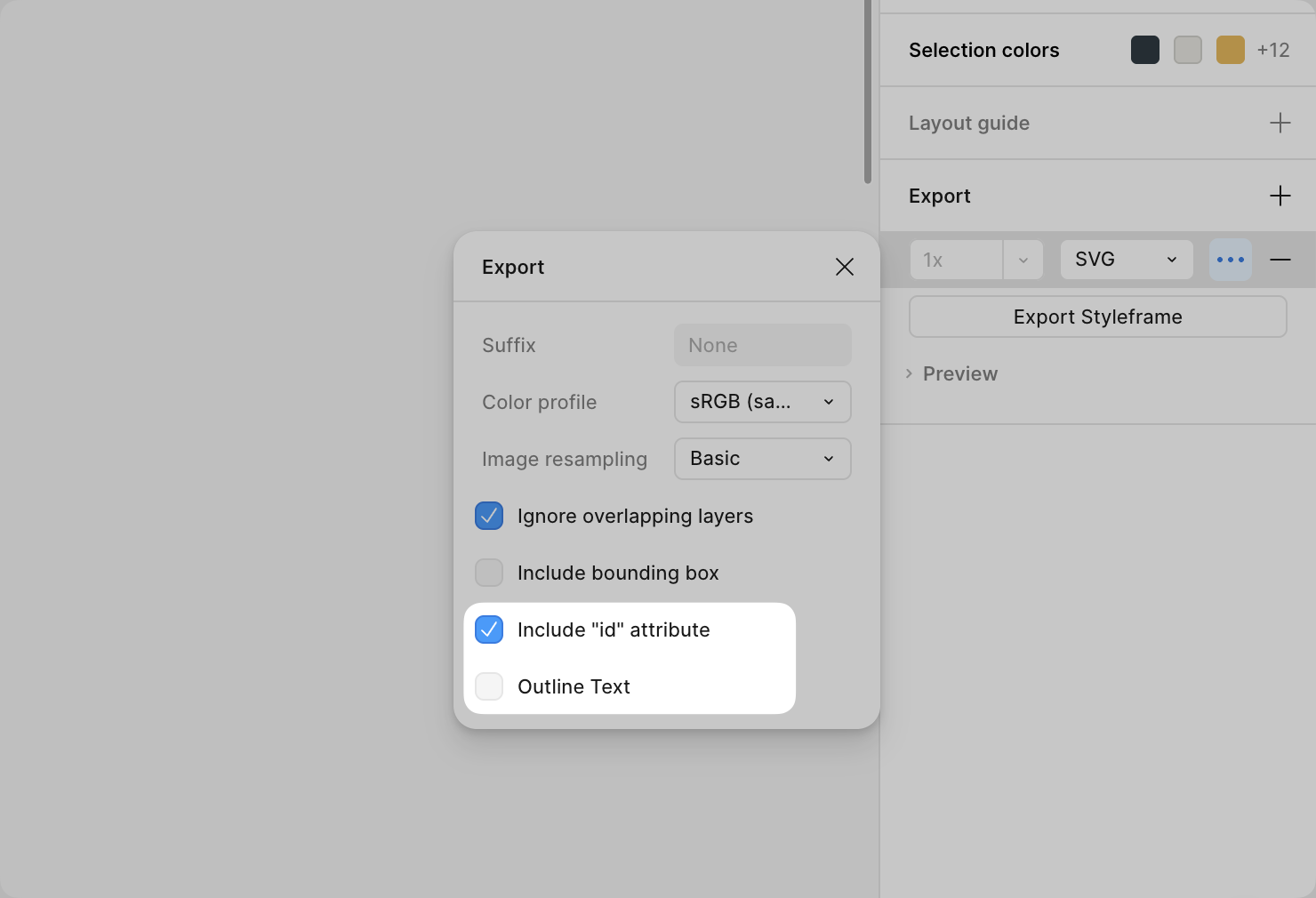
Editable text
ToothPaste will paste editable text by default, however when copying text from Figma, make sure to:
- Add an export option set to SVG.
- Disable the checkbox that reads "Outline Text".
Otherwise your text will be exported as paths.
Retain layer names
ToothPaste will keep the layer names of your SVGs when pasting into After Effects, however, Figma strips ID names by default. To enable you must:
- Add an export option set to SVG.
- Enable the checkbox that reads "Include 'id' attribute".
Troubleshooting
The extension won't open
If you've installed the extension but can't open it or find it in the Extensions menu, please follow the steps detailed in this guide: ZXP/CEP Extension Won't Open.
I get the following error when trying to paste: "Unable to parse SVG. Please make sure you have copied valid SVG code."
This error means that the extension wasn't able to read the SVG code from your clipboard. Most of the time, this happens because you haven't copied valid SVG code. If you're copying from Figma or Sketch, make sure to select "Copy as SVG". For Affinity Designer, make sure "Copy items as SVG" is enabled in the settings.
If you're trying to paste an SVG with text elements, there is currently a bug where some symbols such as an ampersand (&) will result in this error. A fix is being worked on, but in the meantime, try converting the text to an outline.
Which SVG features are unsupported?
The following features are not currently supported by the extension:
- Layer styles and effects
- P3 colors
Some shapes look magenta when I paste them.
A magenta fill means ToothPaste was unable to convert the color on the fill, stroke or text. The most common reason is that your document in Figma is set to the P3 color space. Make sure you set the color space to sRGB instead.
Ligatures in text layers are missing or look incorrect.
Some fonts use typographical variants for ligatures, which ToothPaste is unable to parse. You should disable these in your design application before copying.
Will those features be coming to the extension?
Some these features are currently planned for future updates to the extension, although there's no ETA available at the moment.
Does ToothPaste share my designs or information with third parties?
No, everything is run locally on your device, so no information is shared with third parties, including your designs. Likewise, the extension does not collect any analytics or user information to function. It does, however, use aescript's licensing system to verify a valid license has been registered, so any user information required by this process will comply with aescript's privacy policy.